Texture Compression and Shrinking
It's not only your smallclothes that benefit from being small.
What is texture compression?
Texture compression works by converting textures to a format that plays nicer with GPUs, reducing the memory consumption of your character, and reducing the risk of you crashing your pairs.
Many modders provide their texture files in an uncompressed format - while this is good for visual quality, it also often unnecessarily bloats the file size. Compression is technically lossy, but often has no perceptible quality loss.
Snowcloak offers a solution to this by pre-checking textures for ones that might look bad when compressed, and offering you the option to convert them.
To begin, open the main window, then hit the Character Analysis button.
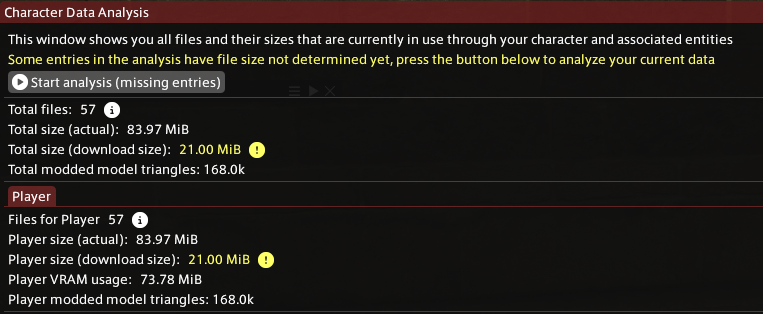
Most likely, the analyser hasn't run on all your stuff yet, so press the Start Analysis (missing entries) button.
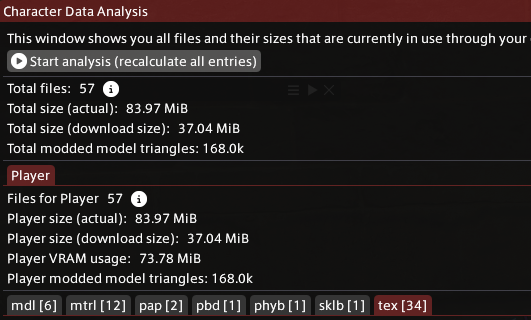
Snowcloak now has an accurate picture of how many resources your mods use. Open the "tex" tab, and check the option to enable BC7 conversion.

A full list of your textures will be shown. If it's in an non-optimal format, a checkbox will show, allowing conversion to BC7.
In this example, the texture shown is one that's risky to convert, for demonstration purposes. The important elements here are the file size, download size, and format. A8R8G8B8 is the highest quality format, but also the "heaviest".
In this instance, Snowcloak has detected that the file contains visual elements that can't be reliably compressed. These heuristics are not perfect, but are improved periodically. You can override the warning if you wish.
After conversion, the download size may increase - this is expected! The download size shown is after Snowcloak compresses it for transport. Converting to a more GPU efficient format reduces the transport compression efficiency - but as GPU memory overcommit can cause a crash, it is considered an acceptable trade-off.