Registering an Account
All set up? Get yourself your Snowcloak ID and start syncing.
Registering an account
Snowcloak supports two ways of "logging in" - XIVAuth, and the legacy secret key method. Of the two, XIVAuth is the preferred option.
XIVAuth grants extra benefits over using an unlinked secret - you can join more syncshells, use a vanity ID, and can recover your account if you need to reinstall your game.
XIVAuth
XIVAuth is a third-party tool expected to become the standard for mod authentication. Operated by a Dalamud developer, it is considered safe and trustworthy. When using this authentication method, Snowcloak receives a key from XIVAuth that is unique to your character, but no other information.
XIVAuth is ideal if you reinstall the game often - following these steps will allow you to recover your existing Snowcloak account as well as create new ones.
This guide assumes you've already set up XIVAuth and verified your characters on their website.
XIVAuth requires your character have a working Lodestone profile - you'll need to have attuned to your starter city's Aetheryte for this to generate, and it might take up to an hour. If you want to get started immediately, and you're on a fresh character, use the secret key method - you can convert it to XIVAuth later.
Once you've verified your character with XIVAuth, you can remove the code they give you and make your profile private again, if you wish.
To use XIVAuth, click the appropriate button in the window. Your browser will open on the XIVAuth login page if you're not logged in, or the character select page.
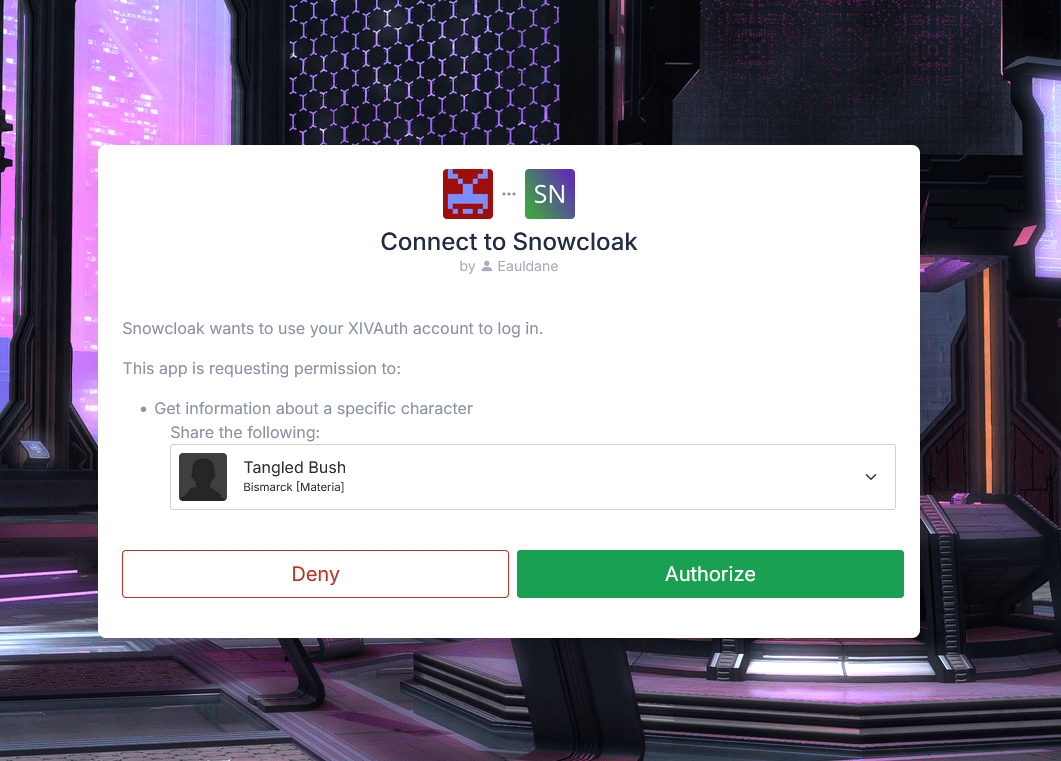
Select the character you're logged in as, and hit authorise. Tab back in to the game, and within a few seconds, your new secret key will show up. Hit Save and Connect, and you're done! You can now log in with the web UI and claim a vanity ID if you'd like.
As the server has no knowledge of your secret key - only a hashed version that it compares against - any subsequent logins with XIVAuth will instead regenerate your secret key. Because of this, if you use multiple computers, devices that were logged in before will show errors about being unauthorised. If you have to do this, it's recommended to copy the secret key to your other devices rather than log in again.
Secret Key Login
To use the legacy method, hit the button. Your secret key will be generated automatically.
This method may be removed in the future, and we recommend linking it to a XIVAuth login as soon as possible.
Linking existing secret keys to XIVAuth
To upgrade a legacy account to XIVAuth, open the main Snowcloak UI, open the settings window, go to the Service Settings tab, and then Secret Key Management. Copy the secret key to your clipboard.
Back in the main window, click on "Account Management" and log in with XIVAuth, selecting the character you want to manage.
A secret key can only be linked to one character in XIVAuth. You can use the Character Assignments tab of the Snowcloak Service Settings window to assign a key to multiple characters, but for the purposes of the web UI, one key = one character.
You'll see something like the page below.
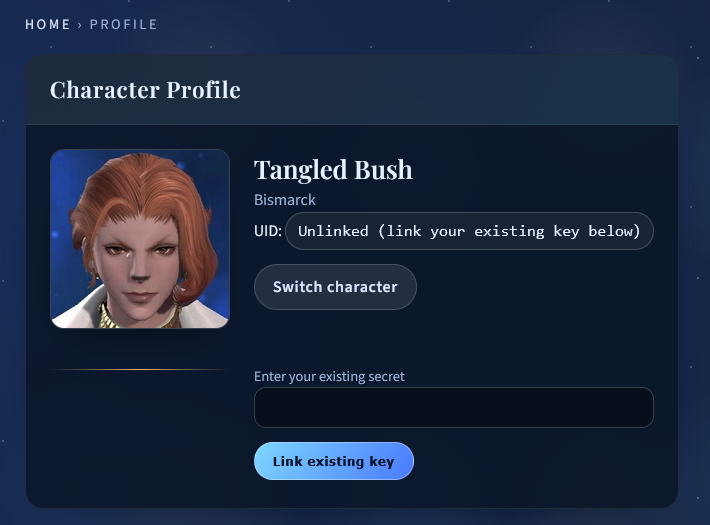
Paste your key into the box, and click "Link existing key" - your browser will hash the key and send it to the server. The page will refresh, showing your UID.
Setting a vanity ID
Vanity IDs are free in Snowcloak, and available to everyone using XIVAuth. While in the web UI managing the character you want to set one for, simply fill in the text box and press save - if it's not taken by anyone, it'll be saved and become visible after logging in to the game again.